Add canvas elements
Add sticky notes, text, shapes, arrows, stickers, files, and other objects to build work directly on the canvas.
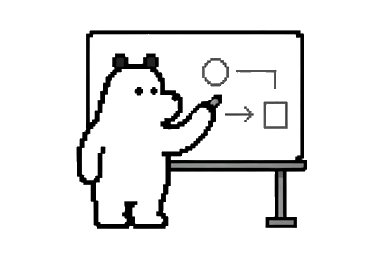
Canvas elements are the objects you place on a canvas: sticky notes, text, shapes, arrows, drawings, spreadsheets, stickers, files, images, PDFs, links, YouTube embeds, and sub-canvases. Use them to make work visible, give it structure, and collect feedback in the same place.
Start here when you need to add content, choose the right object type, select several objects, or understand why an object cannot be edited.
A finished working canvas can keep visual references, notes, review points, and comments together while the team decides what to do next.
What you can add
Most canvas work starts from the toolbar. The exact tools depend on device, workspace settings, canvas type, and your permission.
| Element | Use it for |
|---|---|
| Sticky notes | Short ideas, workshop input, votes, risks, questions, and lightweight follow-ups. |
| Text | Section titles, labels, instructions, captions, legends, and short explanations. |
| Shapes | Frames, zones, process blocks, highlights, swimlanes, and diagram nodes. |
| Arrows and lines | Flows, relationships, callouts, dependencies, and handoffs. |
| Drawings | Fast freehand notes, circles, sketches, and visual emphasis. |
| Stickers | Reactions, status markers, workshop signals, and simple visual cues. |
| Files, images, PDFs, and spreadsheets | Source material, review assets, references, tables, and documents. |
| Links, YouTube embeds, and sub-canvases | External references, video context, and deeper workspaces connected to the current canvas. |
Choose the right element
Use one sticky note for one idea. If a note turns into a paragraph, make it text, a comment, or a document instead.
Use text when the words explain the canvas itself: a heading, label, instruction, caption, or decision. Text should help people read the page; it should not become another brainstorm item.
Use shapes when the canvas needs structure. A large rectangle can become a section, a rounded rectangle can mark a process step, and a diamond can show a decision point. Add text when the meaning would not be obvious to someone joining later.
Use arrows and lines when the relationship matters. Arrows say which way the relationship points; a plain line only says the two things are related. If the line carries meaning such as "blocked" or "optional", label it.
Use stickers sparingly. A sticker can make status or reaction easier to scan, but it should not be the only explanation of important state.
Add elements from the toolbar
On desktop, common tools include Select, Drawing, Comment, Sticky notes, Text, Shapes, Arrow or line tools, Spreadsheet, Stickers, Upload files, YouTube, and Sub-canvas. You may also see AI or workspace-specific shortcuts.
Sticky notes
Watch how a sticky note captures a short idea right next to the work.
Create a short sticky note beside the work so each idea has its own place.
Text
Watch how text creates a clear title, label, or instruction.
Use the Text tool to add a heading or label directly to the canvas.
Shapes
Watch how shapes give the canvas a visual structure.
Add a shape to give related content a visible boundary.
Arrows and lines
Watch how arrows and lines make a relationship or sequence clear.
Connect nearby ideas with an arrow so readers can follow the relationship.
Stickers
Watch how a sticker records a reaction or a vote on the work.
Open Stickers in the asset panel when a reaction or status cue needs a visual mark. The clip below shows the searchable library and the choices available before you drag one onto the canvas.
On mobile, the toolbar is smaller: Select, Hand Tool, Drawing, Sticky notes, Upload files, Insert links, and Comment.
Select a tool, then click or drag on the canvas. Some tools create an object immediately. Others show a placement preview first. Sticky notes and spreadsheets can be placed with a single click on desktop. On mobile, new sticky notes appear near the visible canvas area so they are not lost off-screen.
Useful desktop tool shortcuts:
| Shortcut | Tool |
|---|---|
1 or V | Select |
2 or D | Drawing |
3 | Add Live App (freeform canvases) |
4 or U | Upload files |
5 or C | Comment |
6, P, or W | Sticky notes |
7 or T | Text |
8 or S | Shapes |
9 | Spreadsheet |
K | Stickers |
A | Arrow or line |
Y | YouTube |
Z | Sub-canvas |
/ | Canvas command menu |
For the full tool-key reference, see Canvas shortcuts. If a shortcut does not respond, check focus state and use the visible toolbar.
Add files and media from one panel
On a desktop freeform whiteboard, Upload files opens the unified asset panel. It puts workspace files, device uploads, YouTube, Unsplash, stickers, Google Drive, and shared links in one source rail, while page canvases keep their separate panels. See the asset panel guide for source-by-source steps, permissions, previews, and recovery.
Draw and switch the Pen cursor
The pen-shaped cursor is the default. It shows that Pen is active and previews the current drawing color before you make a stroke. Use the crosshair when you draw with a pen tablet or stylus, such as a Wacom tablet, or whenever you need to place the start of a stroke precisely.
Select Pen or press D, then drag on the canvas to draw. If the pen-shaped cursor gets in the way of precise placement, Cmd-click the already-active Pen icon on Mac, or Ctrl-click it on Windows or Linux. The same modified click switches between the pen-shaped cursor and a crosshair.
A plain click on Pen only selects the tool. It does not change the cursor preference. ALLO remembers the preference for each workspace in that browser on that device.
This recording shows a quick freehand mark added directly to a visual reference.
Drawing shortcuts apply when the canvas owns focus. They do not take over while you are typing in text, a form field, or another editable area.
| Shortcut | Action |
|---|---|
D | Select Pen. |
H | Select Highlighter. |
E | Toggle Eraser on or off. |
[ / ] | Make the stroke thinner or thicker. |
Shift + [ / Shift + ] | Change thickness in larger steps. |
2 / Shift + 2 | Select the next or previous drawing color. |
Hold Shift while drawing | Snap the stroke direction in 15-degree increments. |
If Eraser is active, 2 or Shift + 2 returns to the previous drawing tool without changing the color. Either thickness shortcut changes the thickness and also returns to the previous tool.
Draw directly on the canvas when a quick mark explains the point.
Select and edit elements
Use Select, then click an object. A selected object shows handles, an outline, or an inline toolbar when quick actions are available. If the inline toolbar does not show the action you need, open the Element menu.
Text, spreadsheets, and some embeds may need a second click or explicit edit action. If you enter text-edit mode by mistake, click outside the object, choose Select again, and drag from the object edge.
Use multi-select when objects should move, align, group, duplicate, lock, or delete together. Drag a selection area or use the supported keyboard modifier for your device. If multi-select catches the wrong objects, zoom in and try again.
Arrange and protect layouts
Drag selected objects to move them. Use resize handles when they are available. Use alignment, distribution, and Tidy Up when a group of objects should be easier to scan.
Use layer actions such as Bring to front and Send to back when shapes, images, notes, or labels overlap. Send large background shapes behind the content they organize.
Use Lock when an object should stay in place during a workshop, presentation setup, or review. Locking prevents accidental edits, but explain locked areas with visible text if collaborators may need to understand why they cannot move something.
Comment and review
Select an element and use Comment from the toolbar, inline toolbar, or element menu. Element comments are best when feedback is about a specific sticky note, file, image area, diagram block, or decision.
Mention a person when you need an answer. Resolve the thread when the discussion is done. Before deleting reviewed content, check whether attached comments will be removed with the object.
Unread object indicators can show what changed since you last reviewed the canvas. Hover an unread object to mark it as read, or use the slide rail to find pages with unread object counts.
If something does not work
If a creation tool is missing, check your permission, device, guest status, workspace restrictions, and canvas type. Viewers and commenters cannot create objects. Guests cannot create sub-canvases.
If an object will not move or resize, it may be locked, grouped, still processing, or currently in text or spreadsheet edit mode. Exit edit mode, select the object boundary, or ask someone with permission to unlock it.
If Download is missing but Preview works, the workspace or canvas may restrict file downloads. That is a permission setting, not necessarily a broken file.
If selection feels inaccurate, zoom in, switch to Select, and avoid dragging from editable text or spreadsheet cells.
Examples
For a design review, upload screens, add short text labels, use arrows to show flow, and ask reviewers to comment on the exact screen or object that needs a decision.
For a workshop, create one page per activity, use sticky notes for participant input, use shapes for sections, group final clusters, and lock instructions that should stay in place.
For research synthesis, place PDFs or files near the notes that summarize them, use links for source material, and use comments to track open questions.
Related guides
- Learn canvas basics
- Convert an uploaded document to a canvas
- Use the asset panel to add files and media
- Use the inline toolbar
- Use the element menu
- Work with images, files, and spreadsheets
- Canvas shortcuts
- Track object activity and unread changes