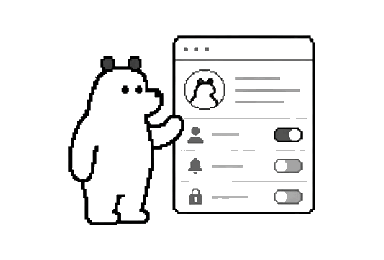
Show or hide sidebar menus
Choose which menus your workspace shows, learn what each menu does, and understand Goals availability during a trial or paid plan.
Looking for Goals in the sidebar, or keeping the menus focused on the tools your team uses? Navigation lets a workspace admin show or hide optional sidebar menus for the whole workspace.
For example, a team that starts using Goals can turn its menu back on here. Hiding a menu removes the sidebar entry; it does not delete the work inside it or change who has permission to access that work.
Choose the menus your team sees
- Check that you are in the workspace you want to change.
- Click the workspace name in the upper-left corner. If the sidebar is collapsed, click the workspace logo.
- Choose Navigation in the workspace menu. You can also select Navigation inside workspace settings.
- Under Sidebar items, turn a switch on to show its menu, or off to hide it.
Changes save automatically. Each choice applies to the workspace, so check with your team before hiding a menu they use.
See what each menu opens
Each menu below links to its guide. A switch only shows or hides a menu. It does not grant access, add a feature to your plan, or enable a workspace feature that is not available.
| Menu | Guide | Availability |
|---|---|---|
| Home | Pick up recent canvases and projects, review activity and mentions, and find people or teams in the current workspace. | Required. Its switch stays on. |
| Projects | Group related canvases, organize work with sections and views, and plan work across the project. | Required. Its switch stays on. |
| Calendar | Review workspace events and project dates together with connected calendars when they are set up. | Optional. Its switch controls whether the sidebar entry is shown. |
| Goals | Create objectives and numerical key results, track progress through an OKR session, and connect work to a shared goal. | Optional · Paid feature. It is available during an active trial and, after the trial, on a paid plan that includes Goals/OKRs. The workspace must have Goals enabled. |
| All canvases | Search, filter, sort, and open the canvases you can access across the workspace. | Optional. |
| Files | Find files attached to your work, preview them, and download available originals when your access allows it. | Optional. |
| Canvas templates | Browse reusable templates and create a new canvas from a proven starting point instead of building one from scratch. | Required. Its switch stays on. |
| Shared with me | Find canvases and projects others shared with you, check unread work, and reopen the item from one place. | Required. Its switch stays on. |
| Trash | Review deleted work, restore items during their recovery window, and permanently remove items when your role allows it. | Required. Its switch stays on. |
| Tell a friend | Share your personal referral link and learn how eligible referral value becomes workspace billing credit. | Optional. |
Bring Goals back to the sidebar
Ask a workspace admin to open Navigation and turn on Goals. If it is already on, confirm that you are looking at the same workspace. Goals is available for the period of an active trial. After the trial ends, the workspace needs a paid plan that includes Goals/OKRs; changing the switch does not upgrade the workspace.
If Navigation is missing from settings
Only workspace admins can change these menus. Being a project owner or canvas editor does not give you that workspace role. Some externally managed workspaces use a fixed set of menus and do not offer Navigation settings.
If a menu is missing from the settings list
This is different from a menu with its switch turned off. Feature availability and externally managed workspace rules can limit the list. Ask your workspace admin about that feature rather than looking for a hidden switch.
Get help with a menu or plan
If you still have questions about a menu, plan, or feature you cannot see, contact support with your workspace name, current plan if known, and the menu you expected to find.